Share an entry with a student
Send one lesson entry to a student's Journal or share that entry by link.
Quick steps
- 1Open the finished lesson entry.
- 2For a connected student, choose Share to send it into their Journal.
- 3If the student has not joined yet, share the entry now so it is ready when they connect, or copy a public link to that entry.
- 4Return to the entry when you need to update it, stop sharing, reset the link, or revoke access.
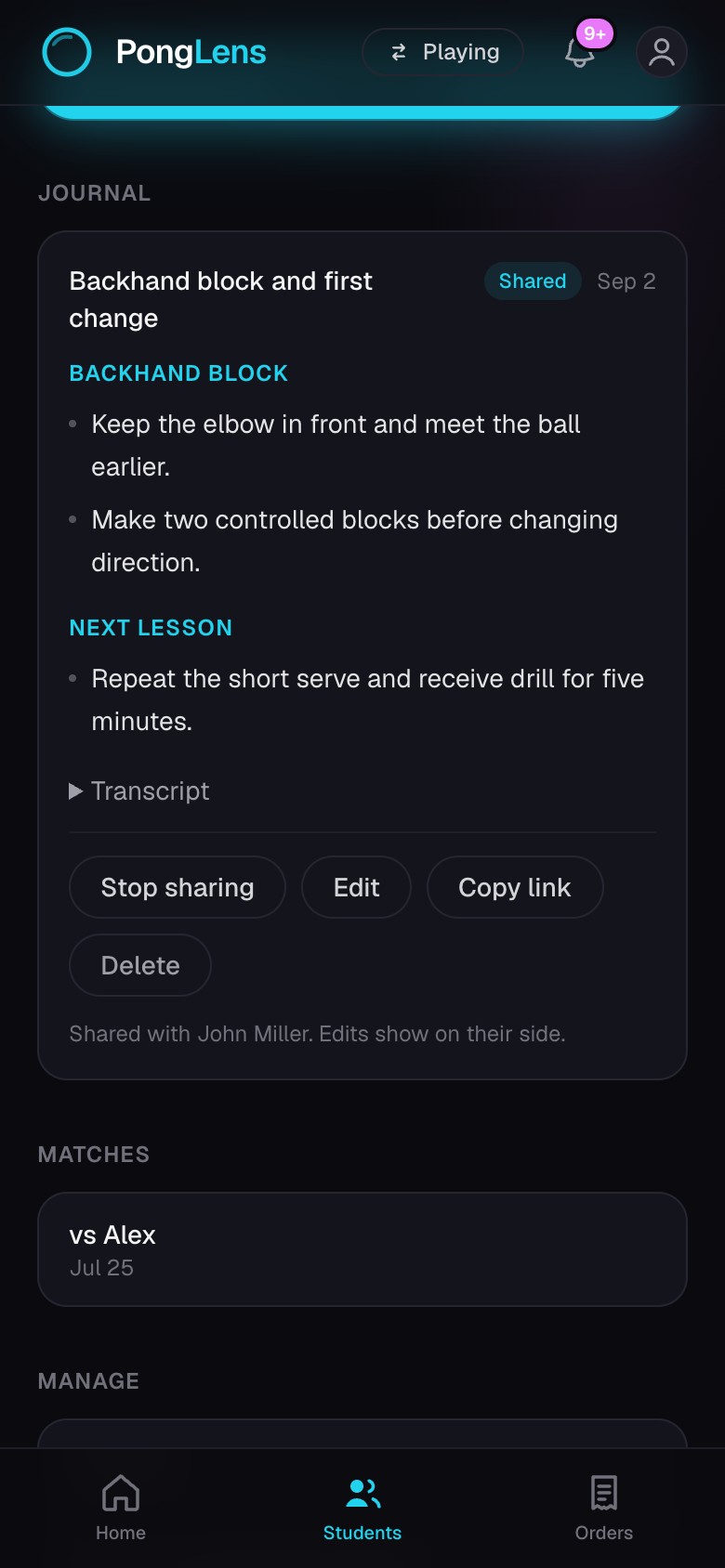
Share with a connected student
Direct sharing places the entry in the connected student's Journal. If you edit the shared entry later, their version updates too. Stop sharing when it should no longer appear there.
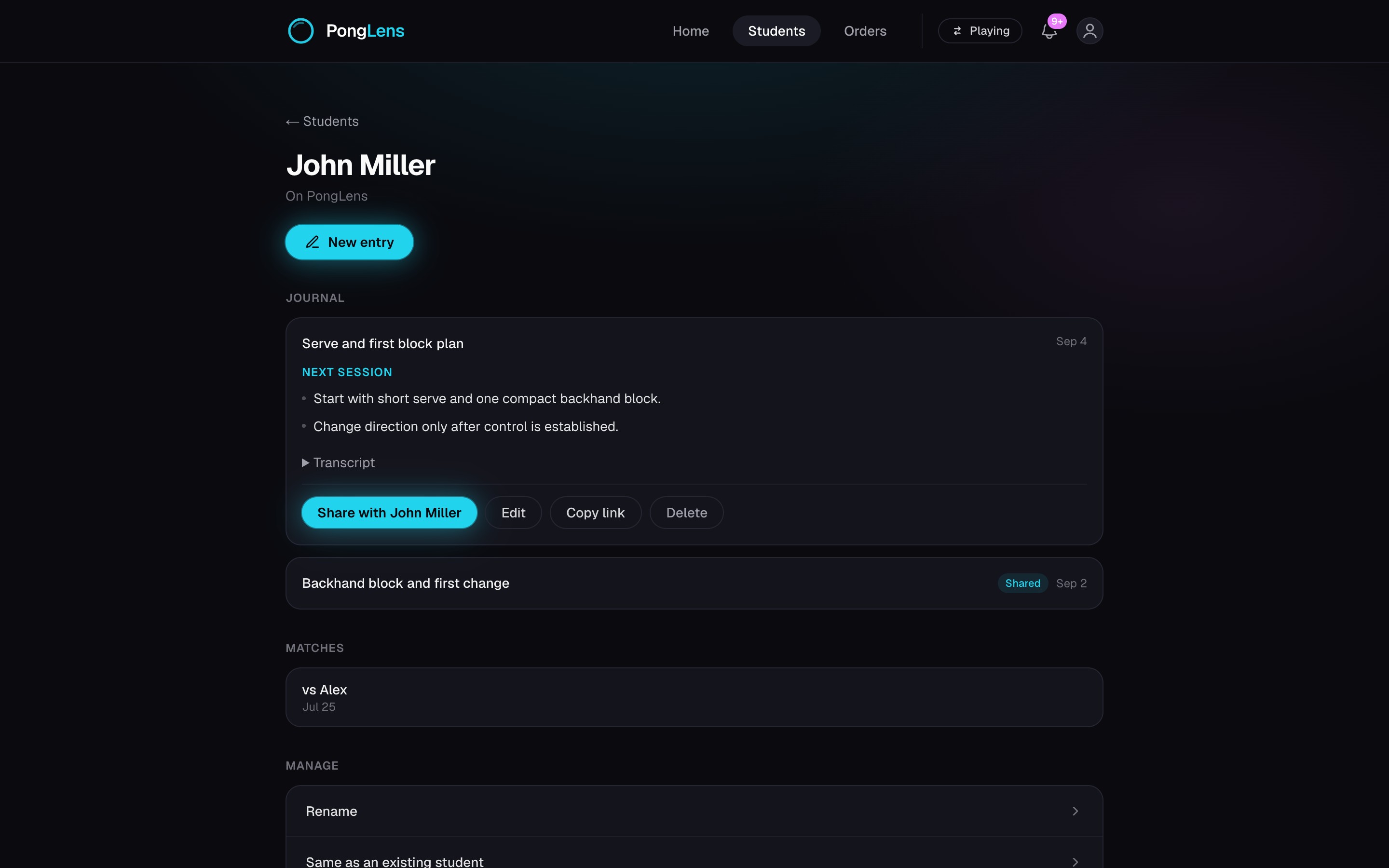
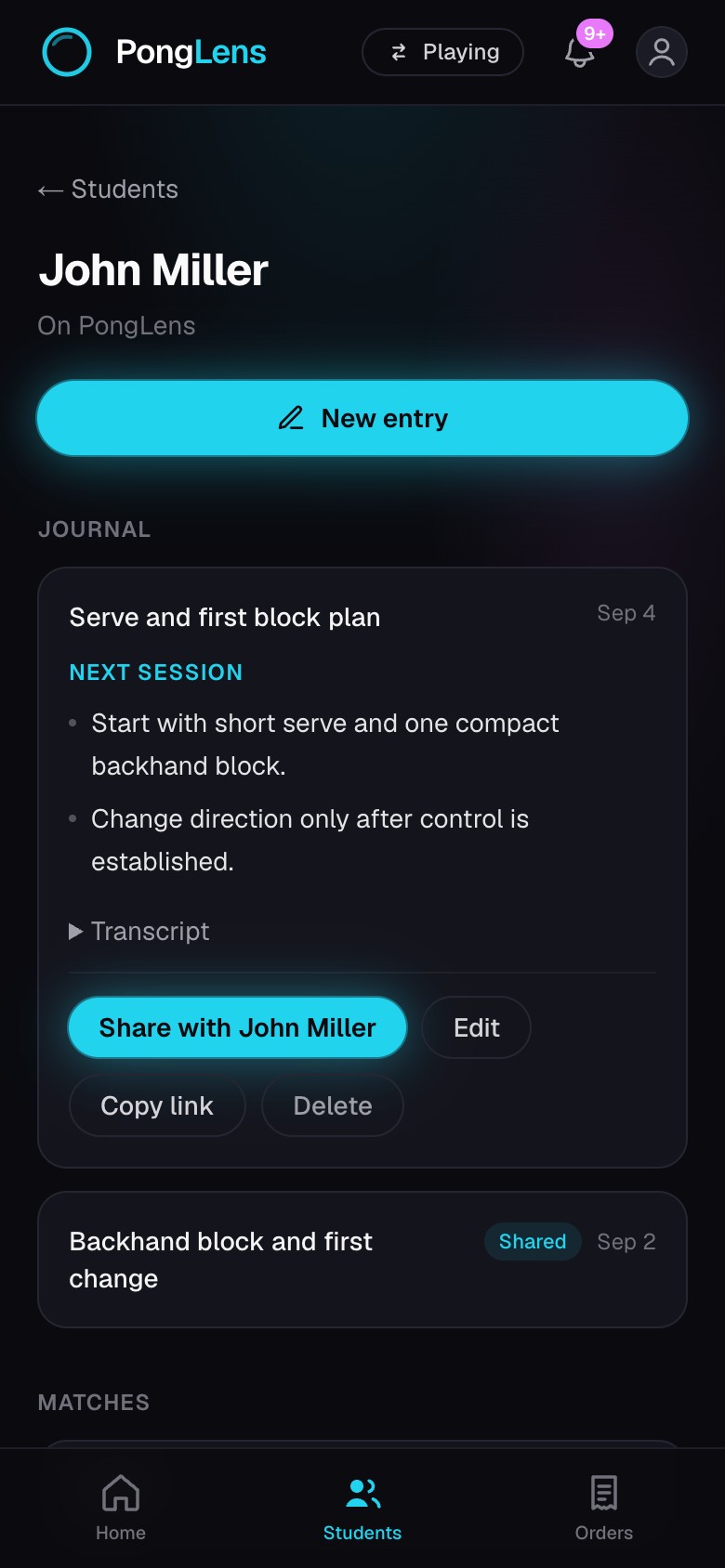
Prepare entries before the student joins
Share an entry before the student has an account and it shows Waiting. It appears in their Journal when they join through the invite for that student record. Stop sharing removes the waiting entry from what they will receive.
The invite panel on the student's page shows how many entries are ready for them. Use its share button to include all remaining entries in one step.
Share one entry by public link
A public link is useful when the student does not have an account. It opens only the individual entry and does not expose the rest of the student's coaching record.
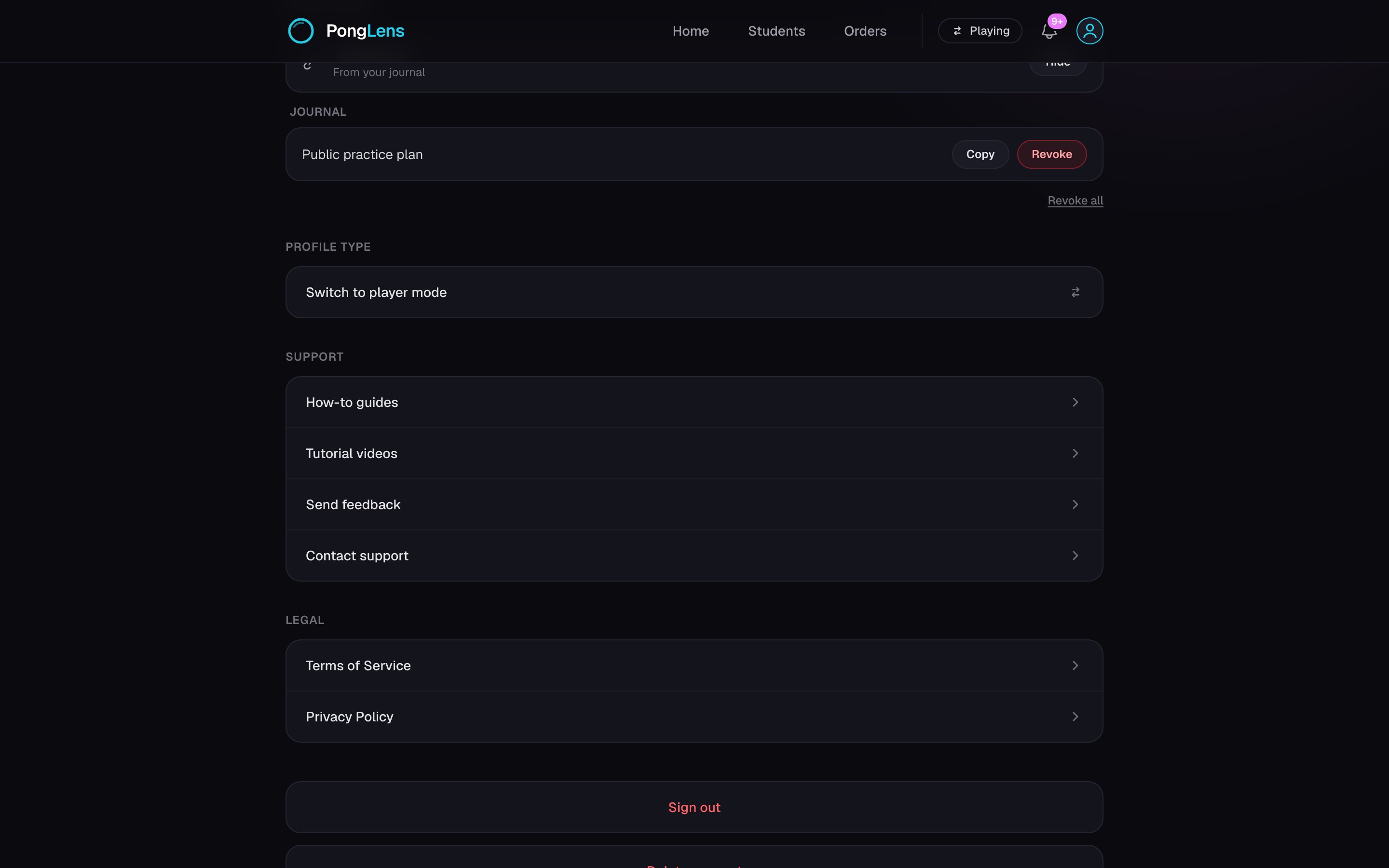
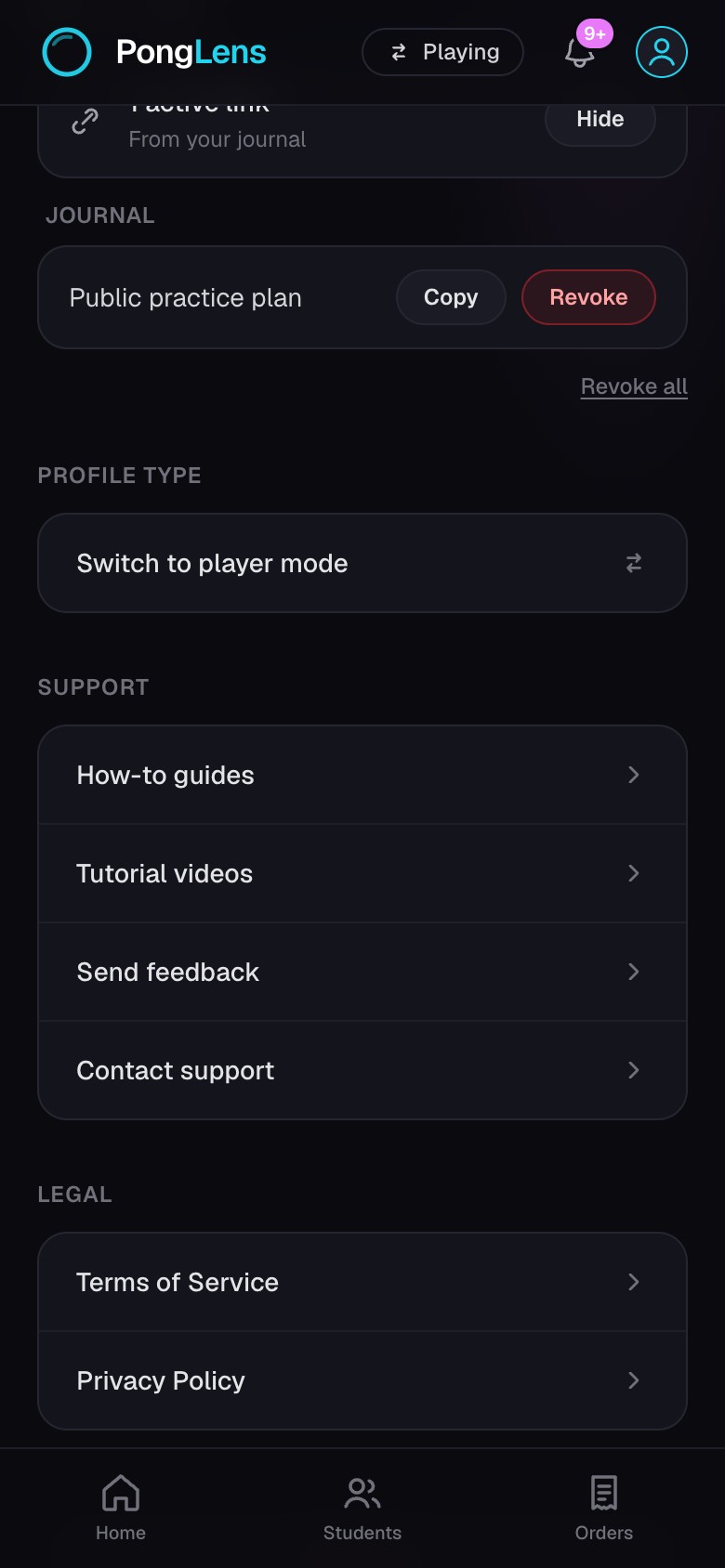
Copy the link again while it remains active. Reset it when you want a replacement, or revoke public access when nobody should be able to open it.
Keep going
Try it on your next match.
Every account starts with 100 free processing minutes and 25 GB of storage.
Upload your first match