Learn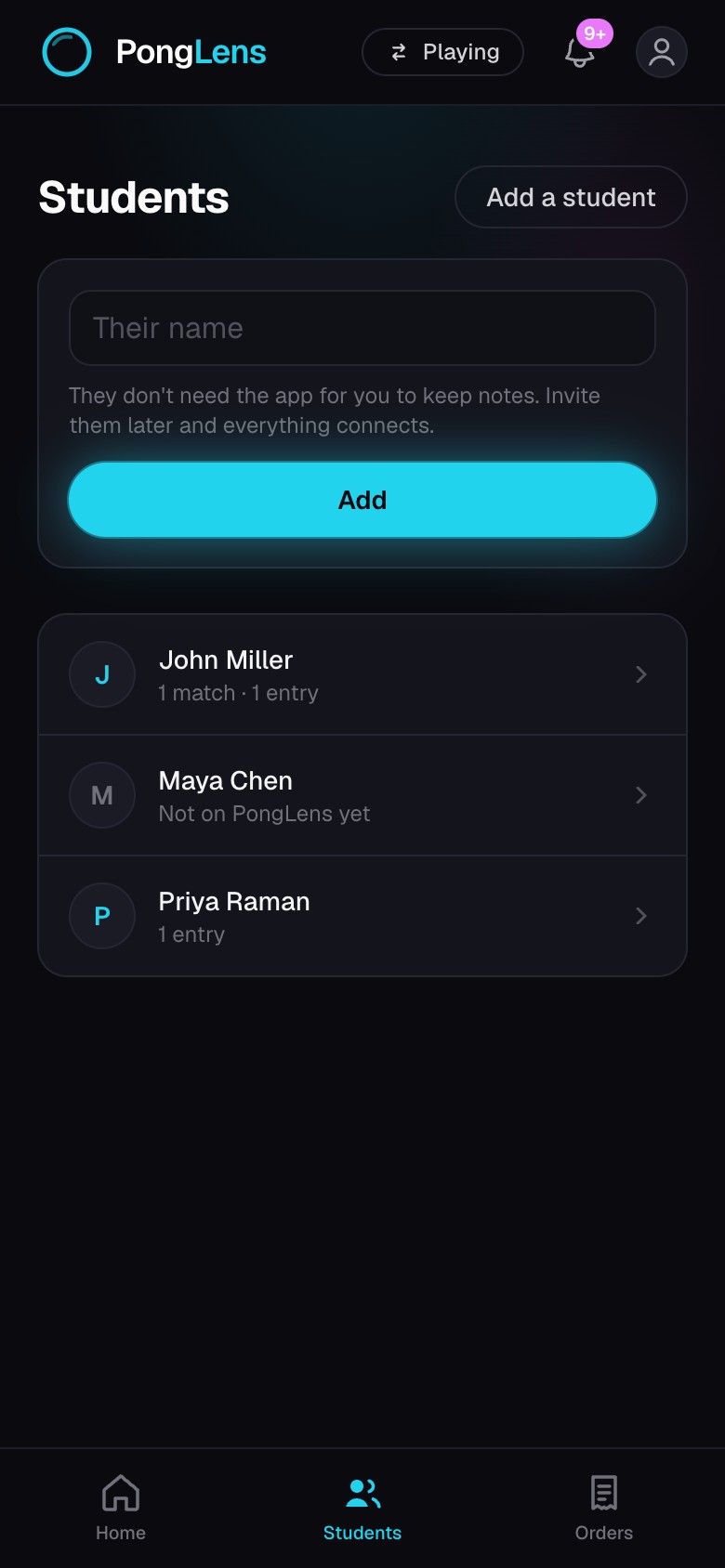
Add and connect a student
Start a student record now and connect their account when they are ready.
Quick steps
- 1Open Students, choose Add a student, and enter their name.
- 2Keep lesson entries on the new student even if they do not have a PongLens account.
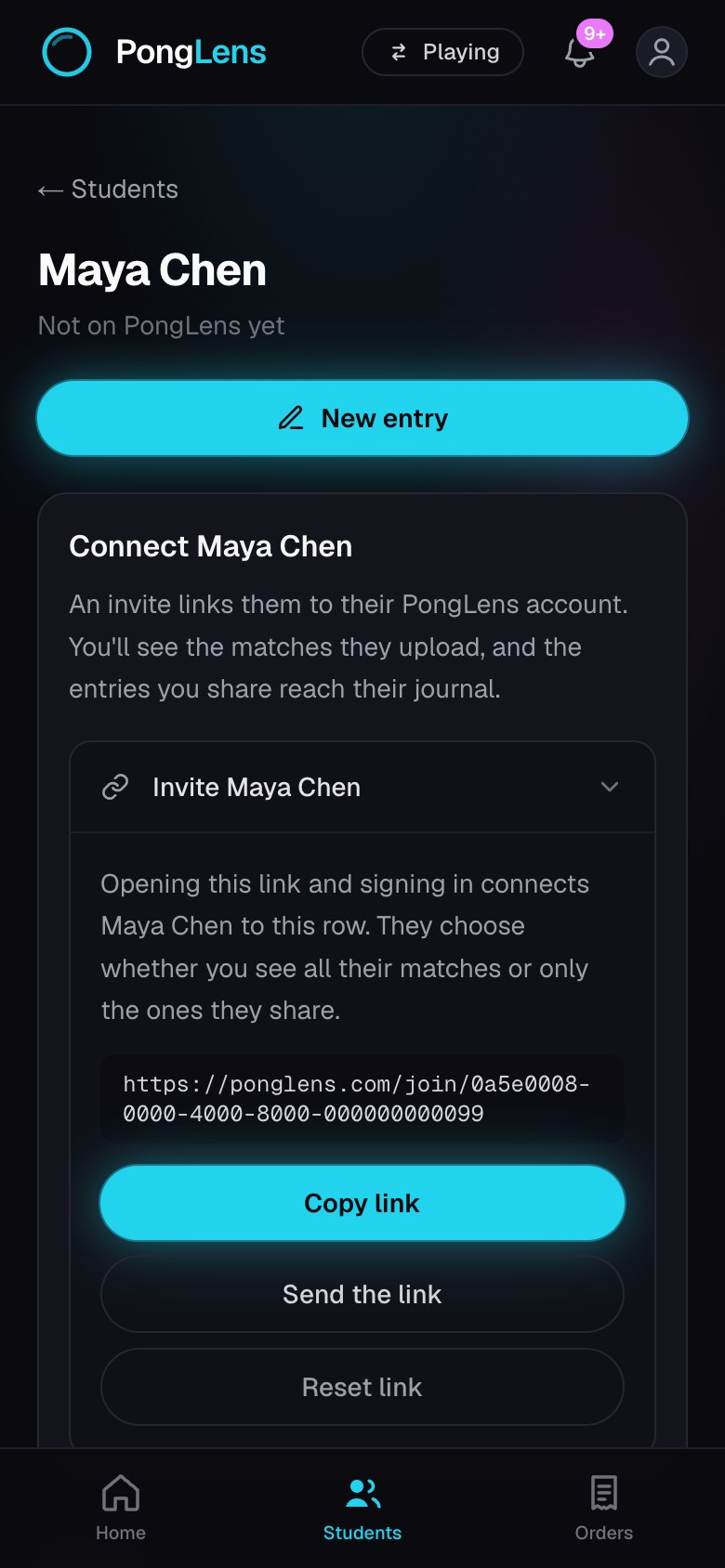
- 3When they are ready, send the invite link from their student page.
- 4After they connect, confirm whether you can see all their matches or only matches they share.
Connect the student's account
The invite attaches the student's account to the name and history already on your roster. The student chooses All matches or Only matches I share; this controls only your access to their matches.
Copy the current invite again when they need it. Reset the invite link if the old link reached the wrong person or should no longer work.
Keep the roster tidy
- Rename a student when their roster name needs correcting.
- Merge a connected duplicate when the same person appears in two rows. Keep the connected account together with the lesson history you already entered.
- Remove a student from the active roster without deleting the historical entries you kept for them.
Keep going
Try it on your next match.
Every account starts with 100 free processing minutes and 25 GB of storage.
Upload your first match