Learn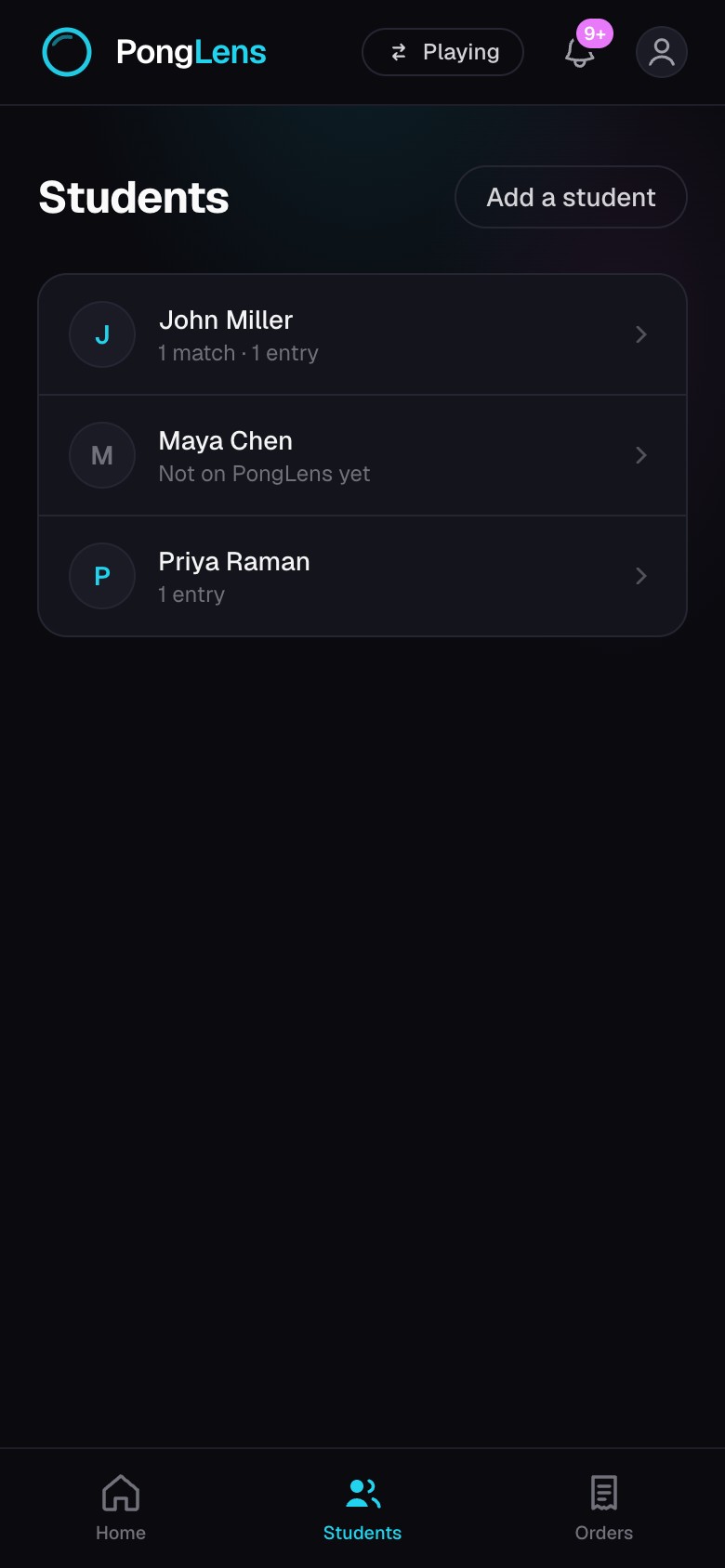
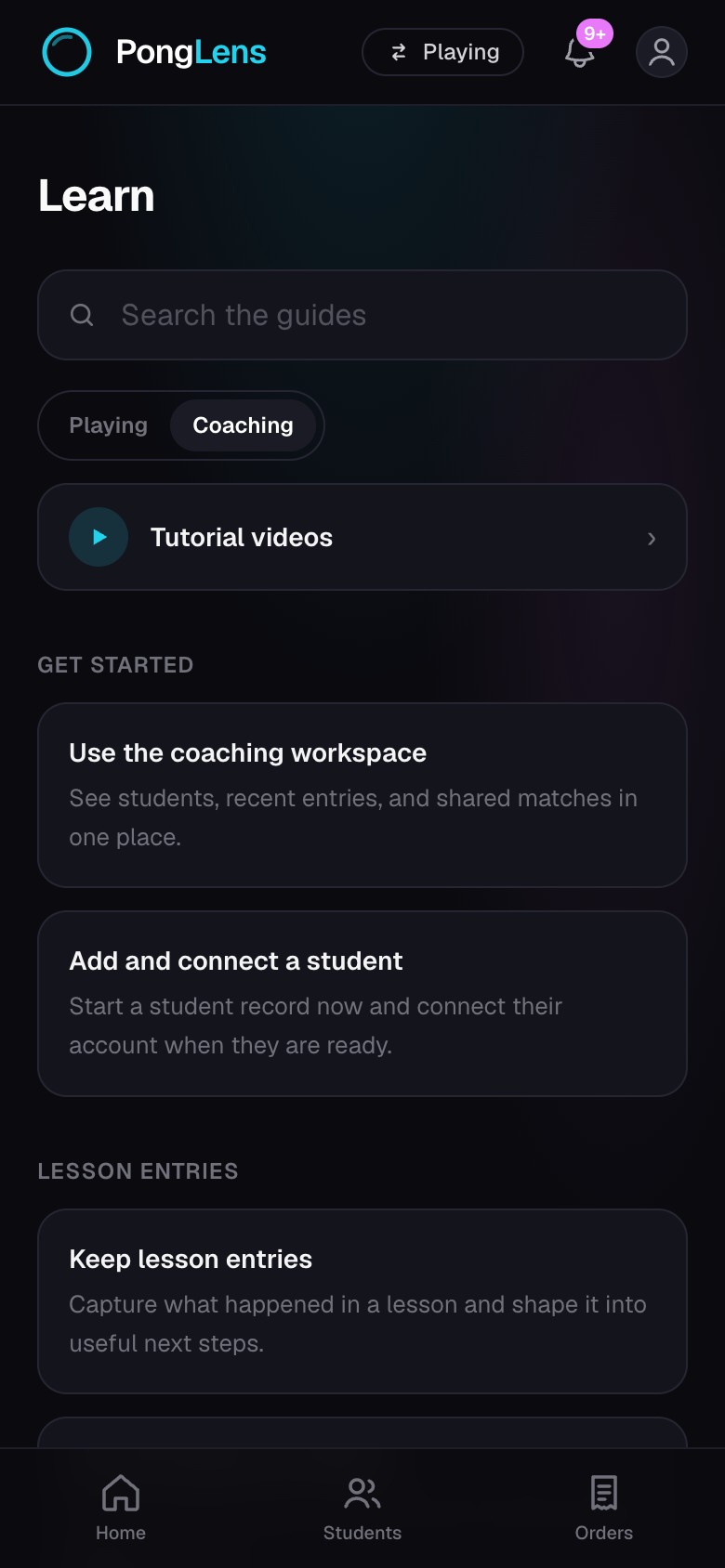
Use the coaching workspace
See students, recent entries, and shared matches in one place.
Quick steps
- 1Open Coach Home to continue a recent entry or shared match.
- 2Open Students when you need the full roster.
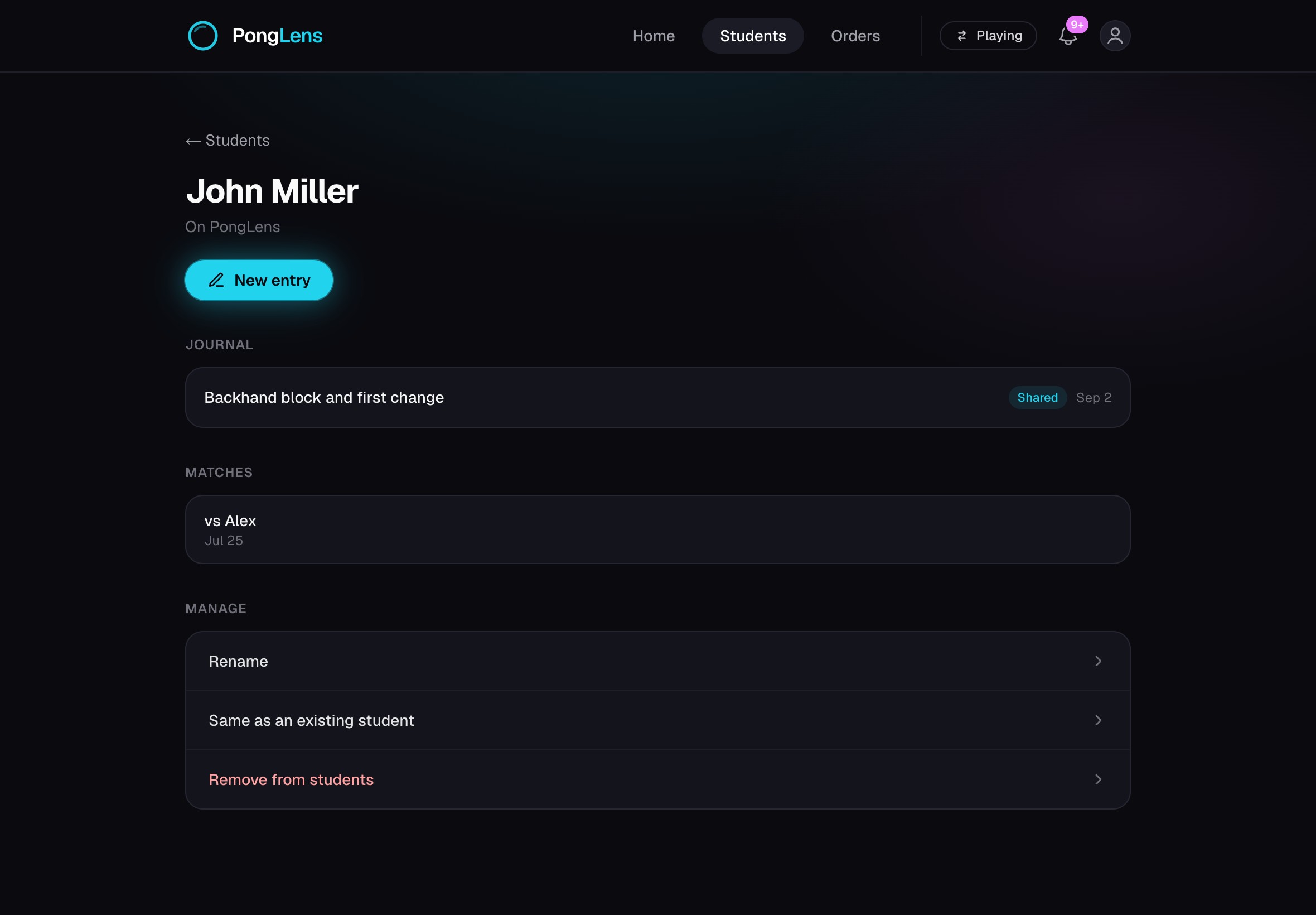
- 3Choose a student to see their lesson entries and the matches they have shared.
- 4Use the switch at the top to move between Playing and Coaching when you use both workspaces.
Start in Coaching
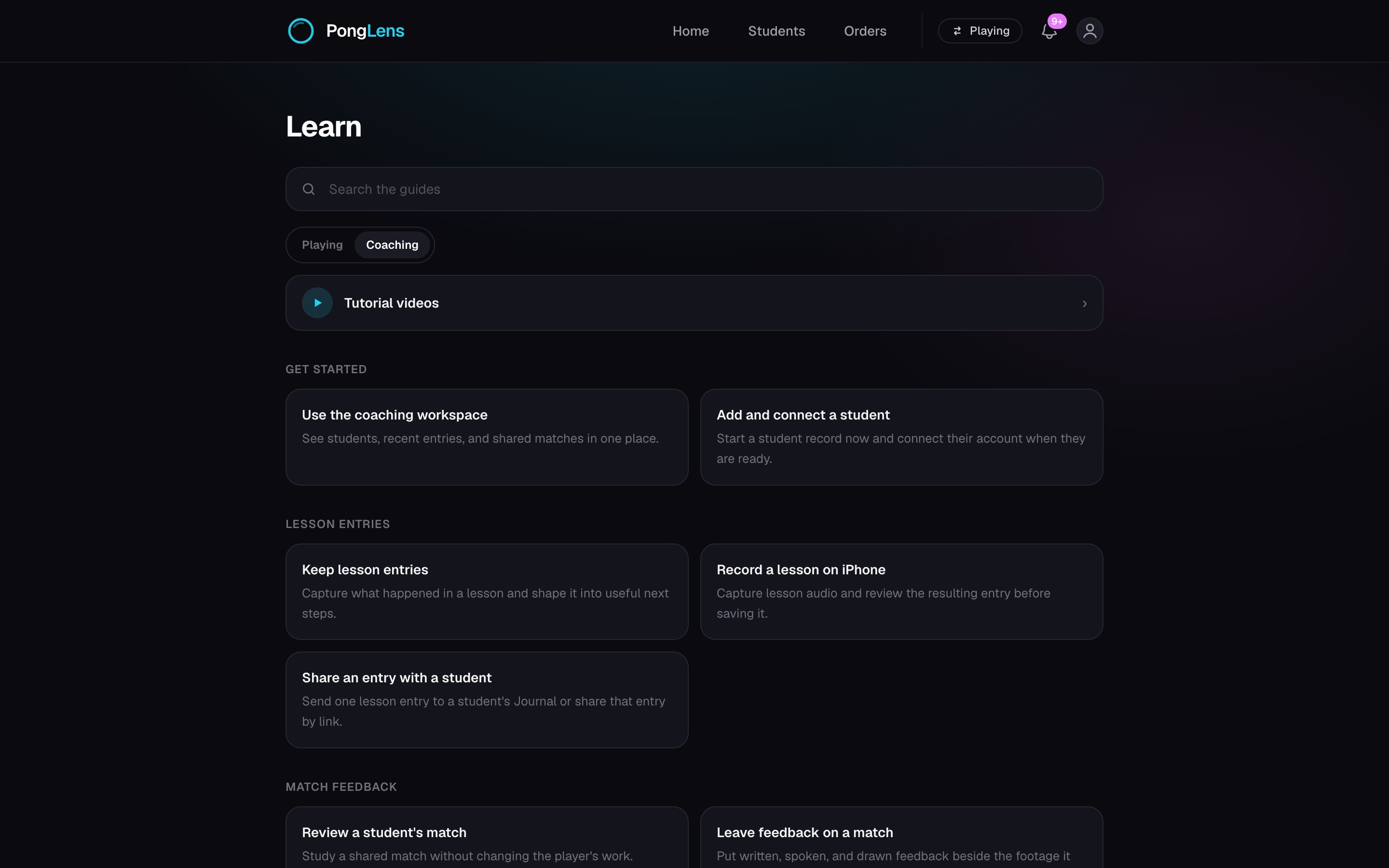
Choose Coaching when PongLens asks how you use the product. If you already use PongLens as a player, switch into Coaching from the control at the top; your Playing workspace remains separate.
Know where to look
- Coach Home brings recent students, lesson entries, and shared matches back into reach.
- Students is the complete roster, including students who have not connected an account.
- A student's page keeps your private lesson record beside the matches that student has chosen to share.
Keep going
Try it on your next match.
Every account starts with 100 free processing minutes and 25 GB of storage.
Upload your first match