Upload a match video
Choose a video, set up processing, and know what happens next.
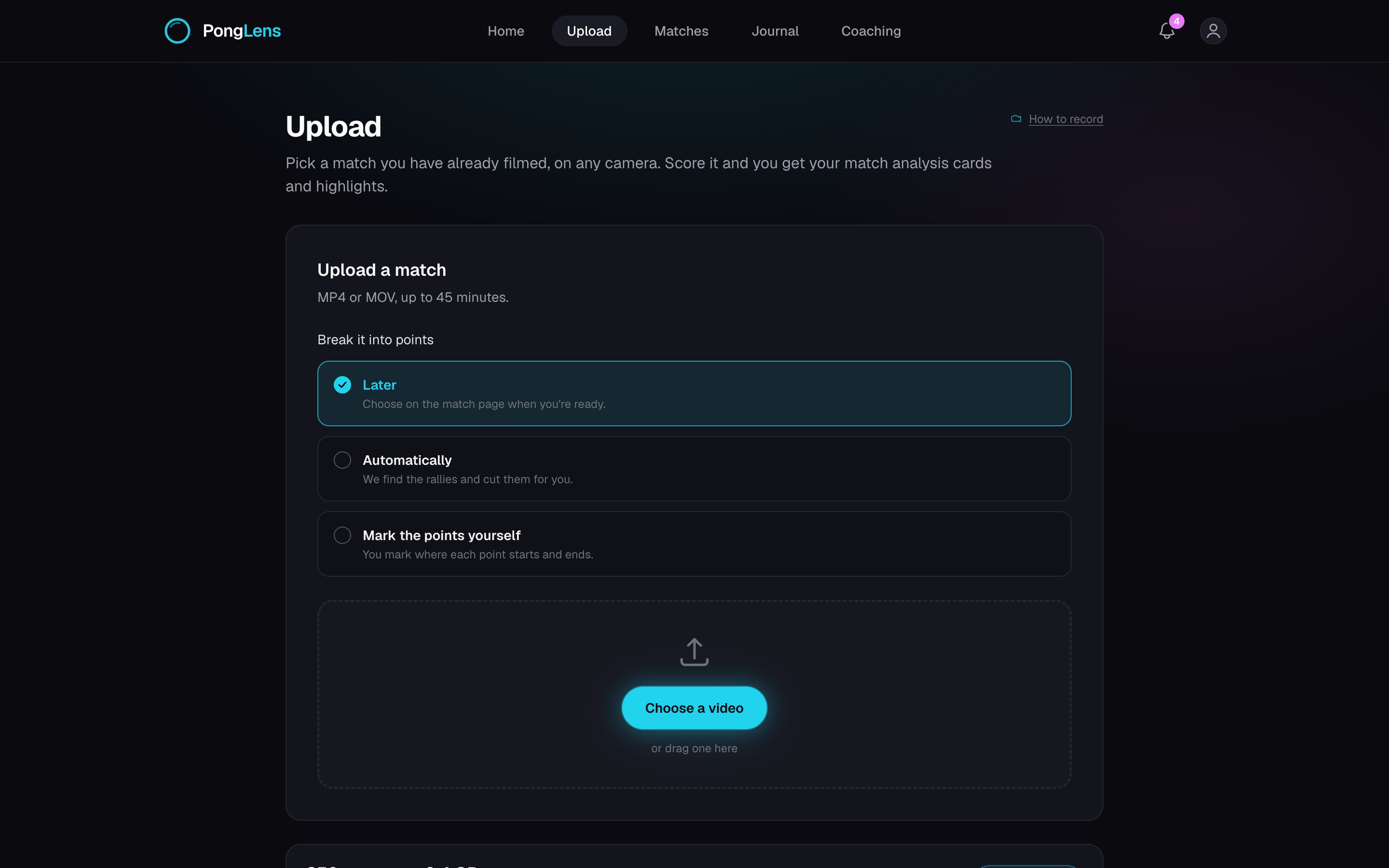
Quick steps
- 1Open Upload from Home or Matches.
- 2Choose a video up to 45 minutes long, then add the opponent, location, session type, and which side of the video is yours.
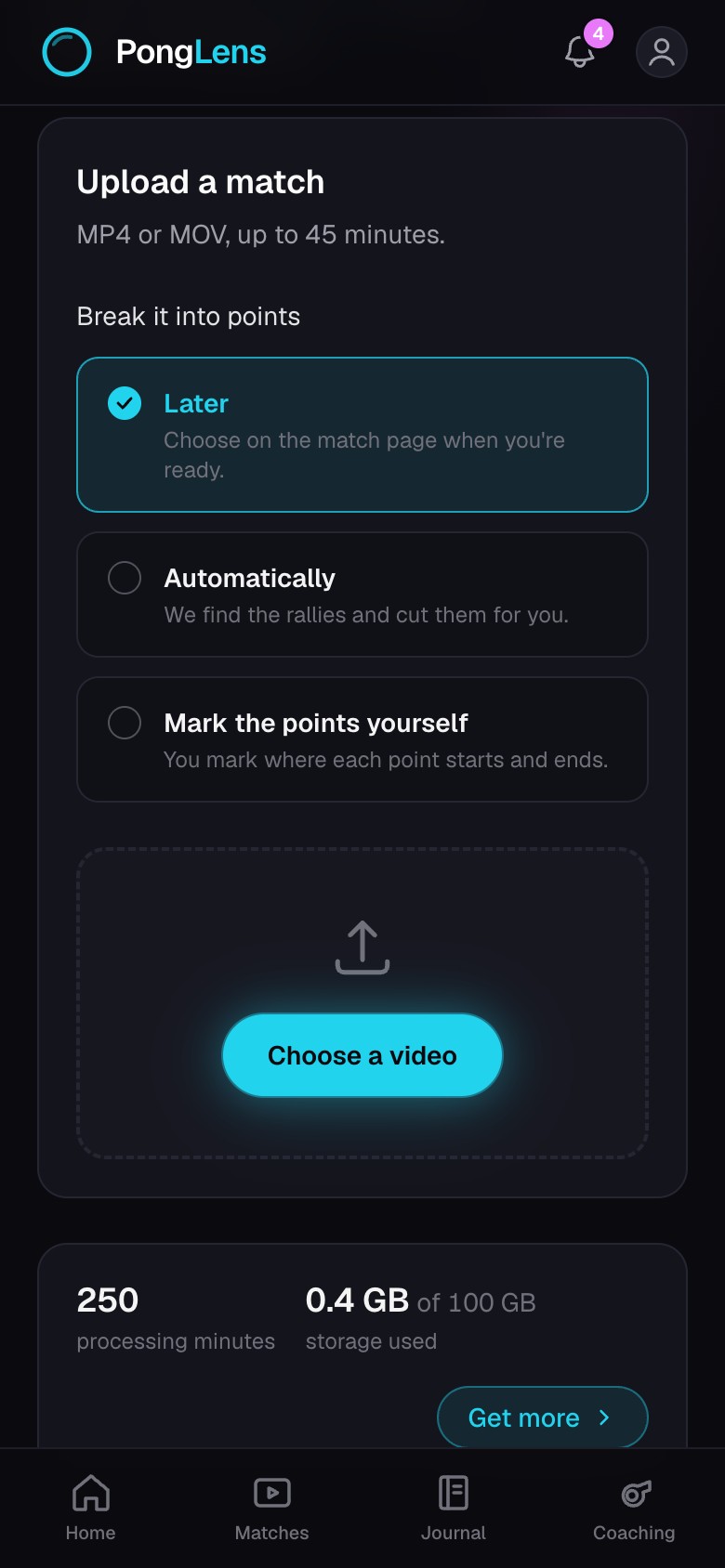
- 3Under Break it into points, choose Automatically, Mark the points yourself, or Later.
- 4Keep the page open until the upload finishes.
- 5Return when PongLens tells you the match is ready.
Record a clear video
Open How to record before your first match. Put the camera to the side of your half or diagonally behind your corner, around head height, with the full table and both players in view. Record sideways when you can.
Choose the side you do not serve from so neither player blocks the camera as the point begins.
Put the phone on a tripod or something that does not move, and keep other tables out of the frame where you can.
Break it into points
Breaking a match into points removes the time between rallies and gives each rally its own clip, which is what scoring, tags, and point-by-point review use.
- Automatically: PongLens finds the rallies and cuts them for you. It is not available for practice or drills yet.
- Mark the points yourself: you mark where each point starts and ends, and who won if you like. The marker opens when the upload finishes.
- Later: the video waits on the match page until you choose one of the other two.
Good to know You can edit the opponent, location, session type, and your side later in Match details, and break the match into points again from More options.
After the upload
The match appears on Home and in Matches while PongLens processes it. You can use the rest of PongLens after the upload completes, and PongLens lets you know when the match is ready.
If you chose Mark the points yourself, the marker opens as soon as the video is ready to play.
Keep going
Try it on your next match.
Every account starts with 100 free processing minutes and 25 GB of storage.
Upload your first match