How to analyze a table tennis match
Review your table tennis match video, compare serve and receive results, and use placement maps to choose what to practice.
Quick steps
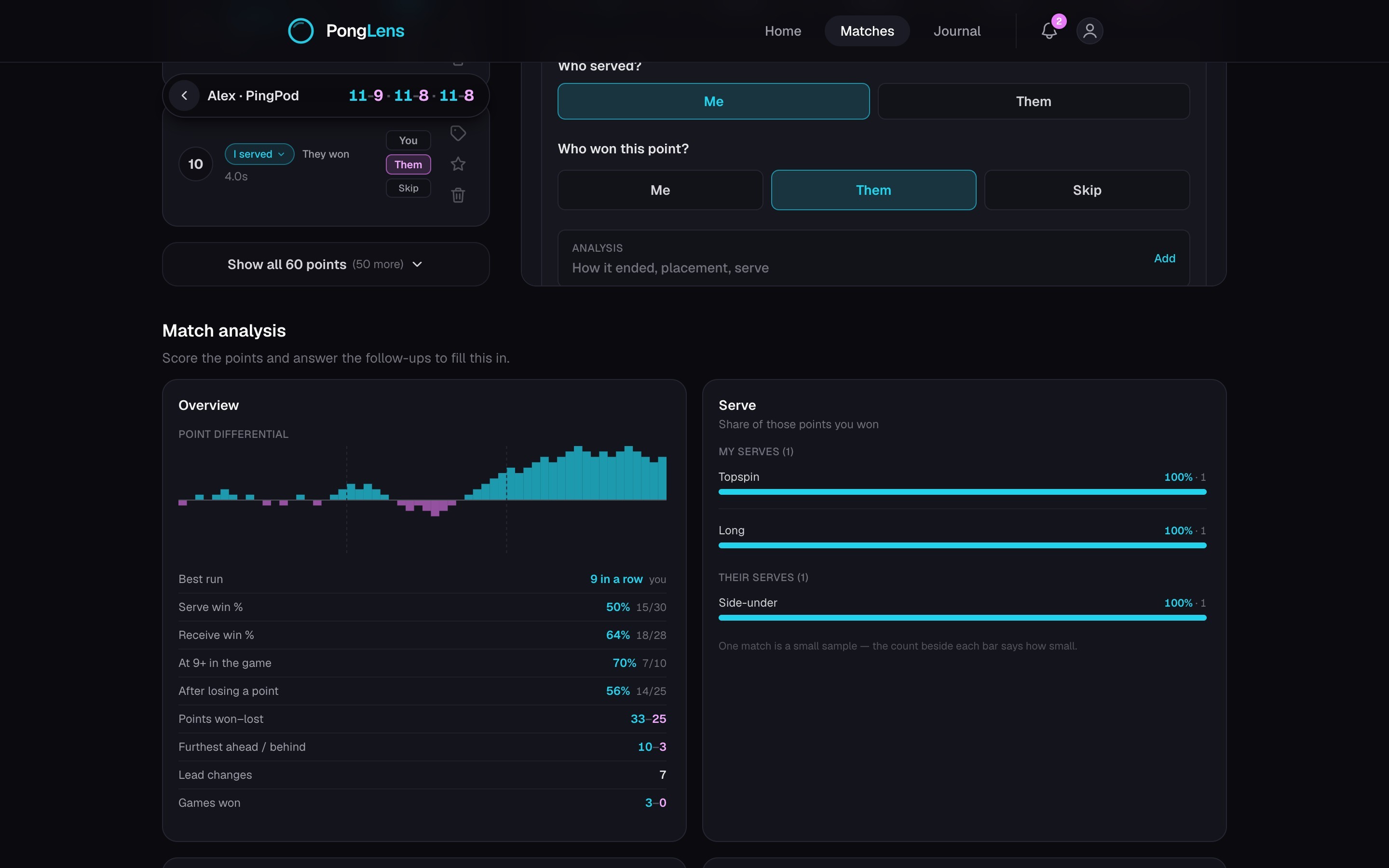
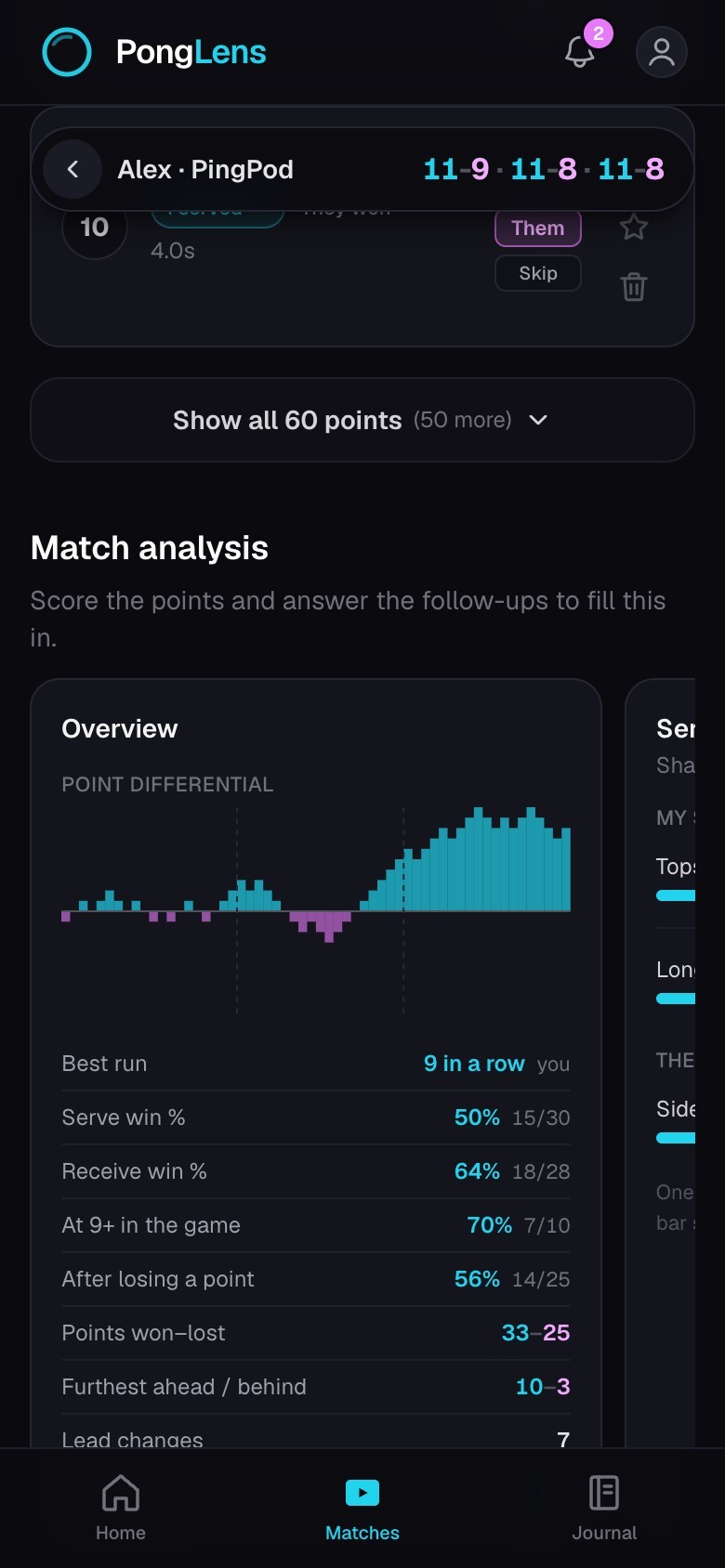
- 1Open a match and choose Match analysis in Tools.
- 2Score the points to fill the result, score, serve, receive, and momentum views.
- 3Answer the optional Analysis questions to fill Serve, Mistakes, and Placement.
- 4Open Match analysis for the serve maps and the cards made from the footage.
Know where each result comes from
- Overview uses confirmed winners, game boundaries, and the serve rotation.
- Serve, Mistakes, and Placement use the answers you chose while scoring.
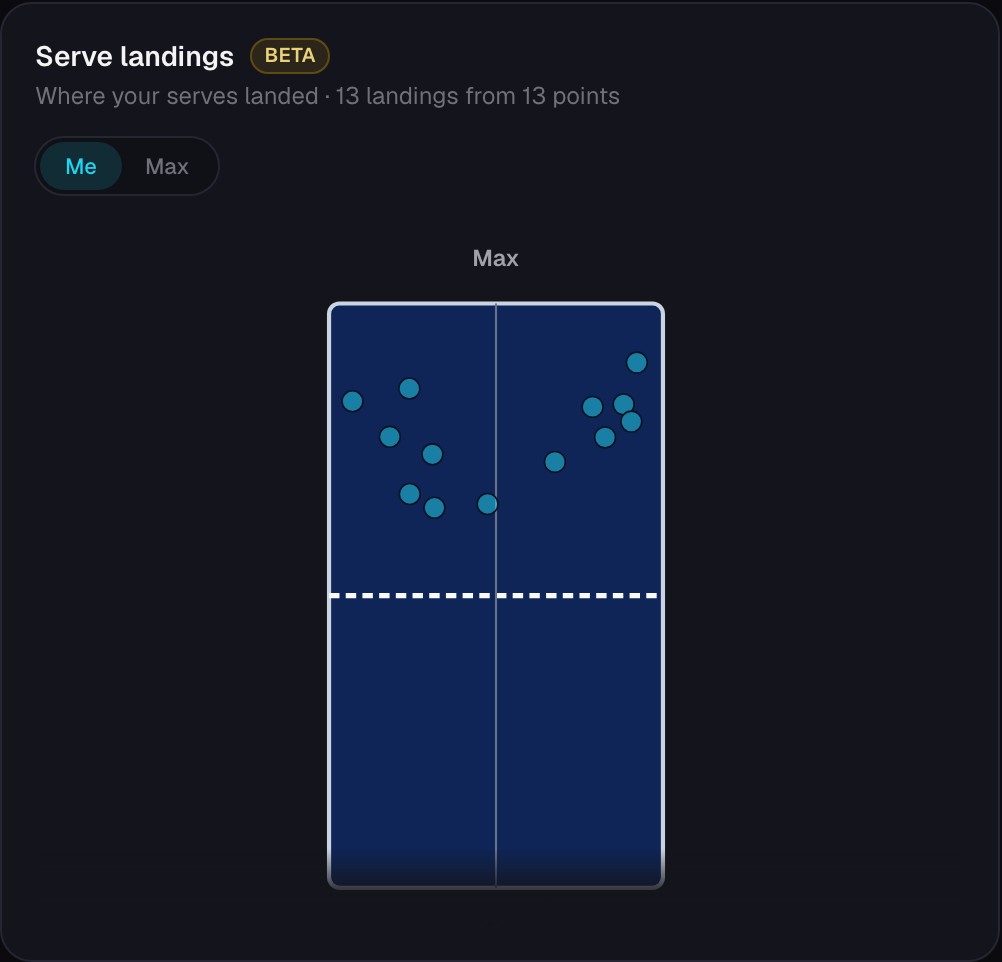
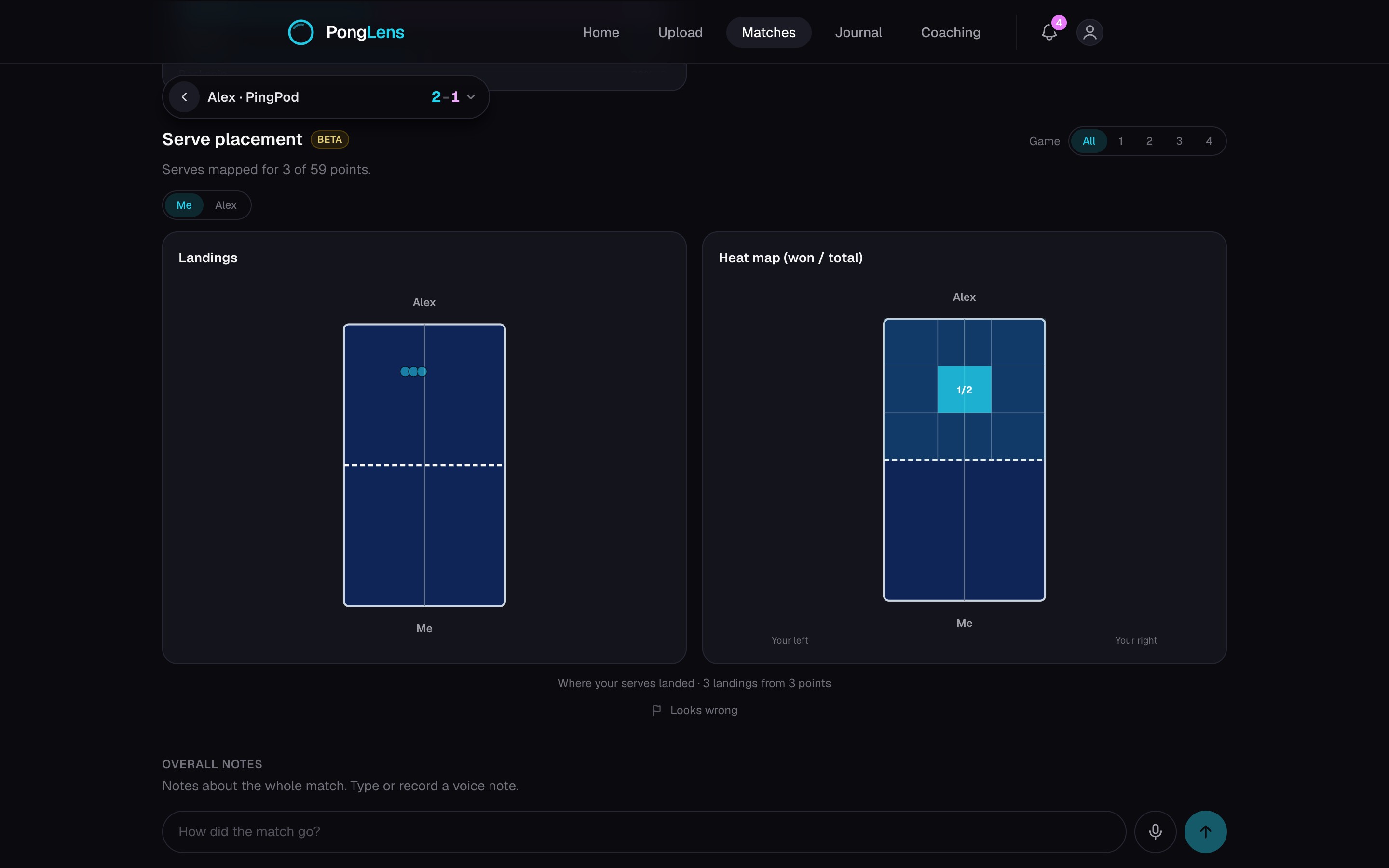
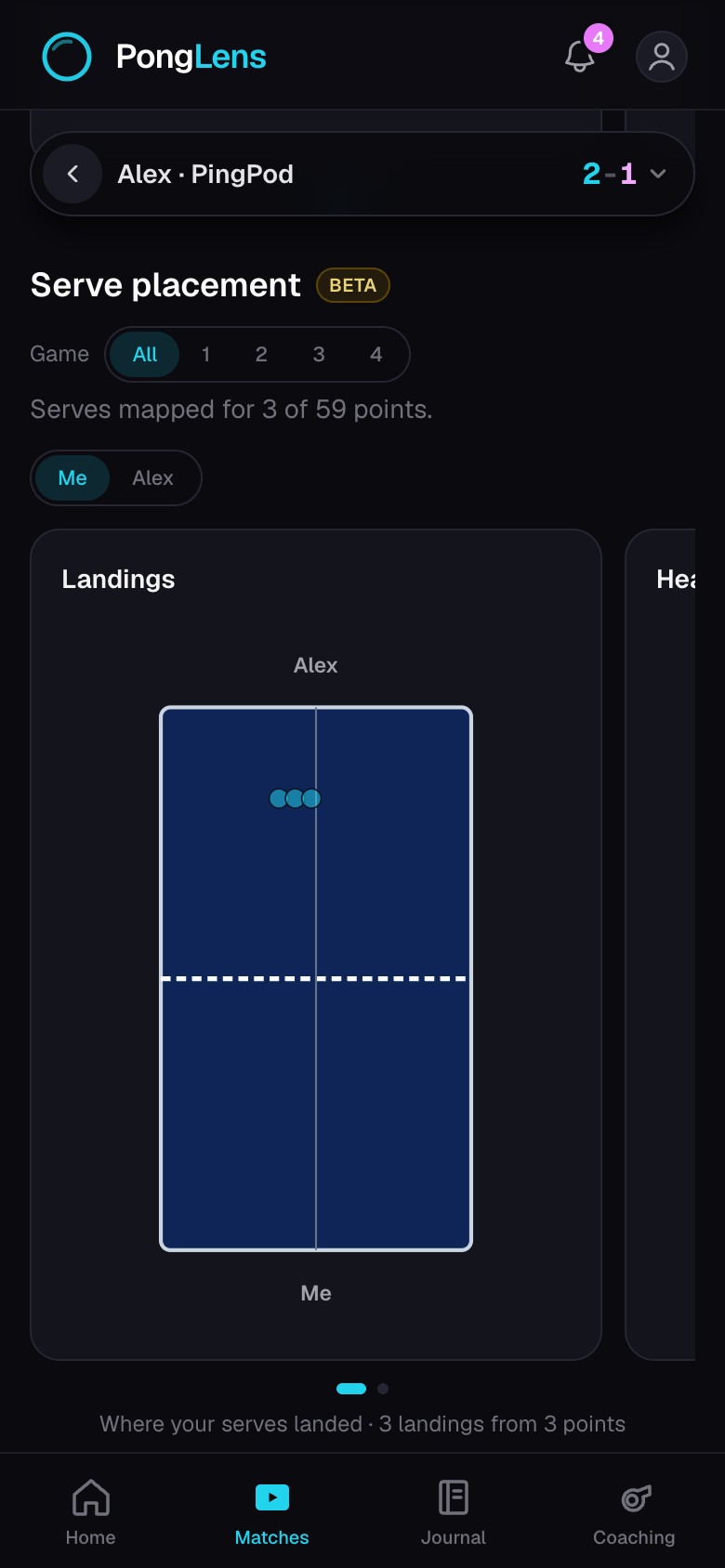
- Serve placement shows where each serve landed and groups those landings into a heat map.
- A coach can read the player's score, analysis, and maps but cannot change them.
Compare serve and receive results
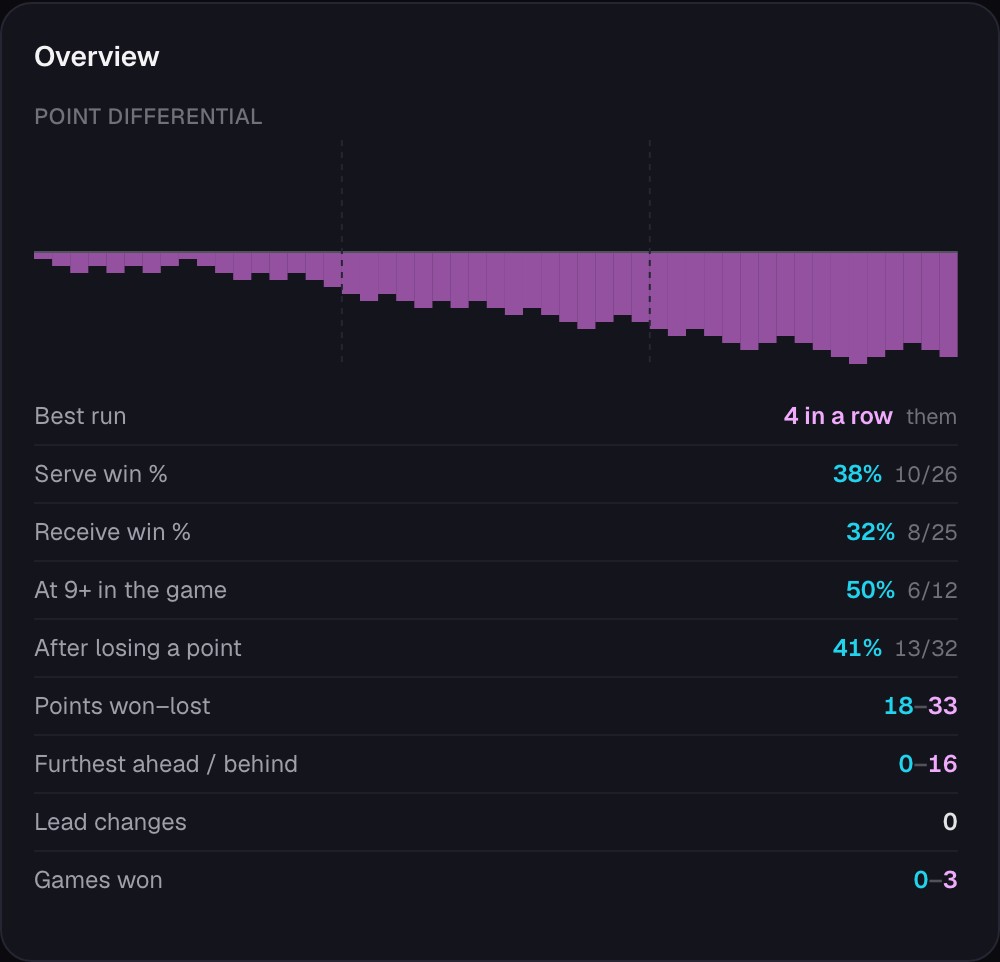
In the example below, the player won 38% of points on serve and 32% on receive. Start by replaying the points lost on receive. Look for a repeated problem in the return or the next shot, and leave a note on the points that show it.
These percentages come from scoring the points. They help you choose what to review; the video and your coach can help you understand why it happened.
Check where serves land
The serve map below shows where each serve landed on the receiver’s side. Compare the areas you use, then replay the points to see what happened after those serves. A cluster of landings shows where you served often, not whether those serves won the point.
Use the clips and your coach’s feedback to choose one thing to work on, such as placing the serve differently or preparing for the next shot. Save it in your training journal and compare it with your next match.
When a match has no maps yet
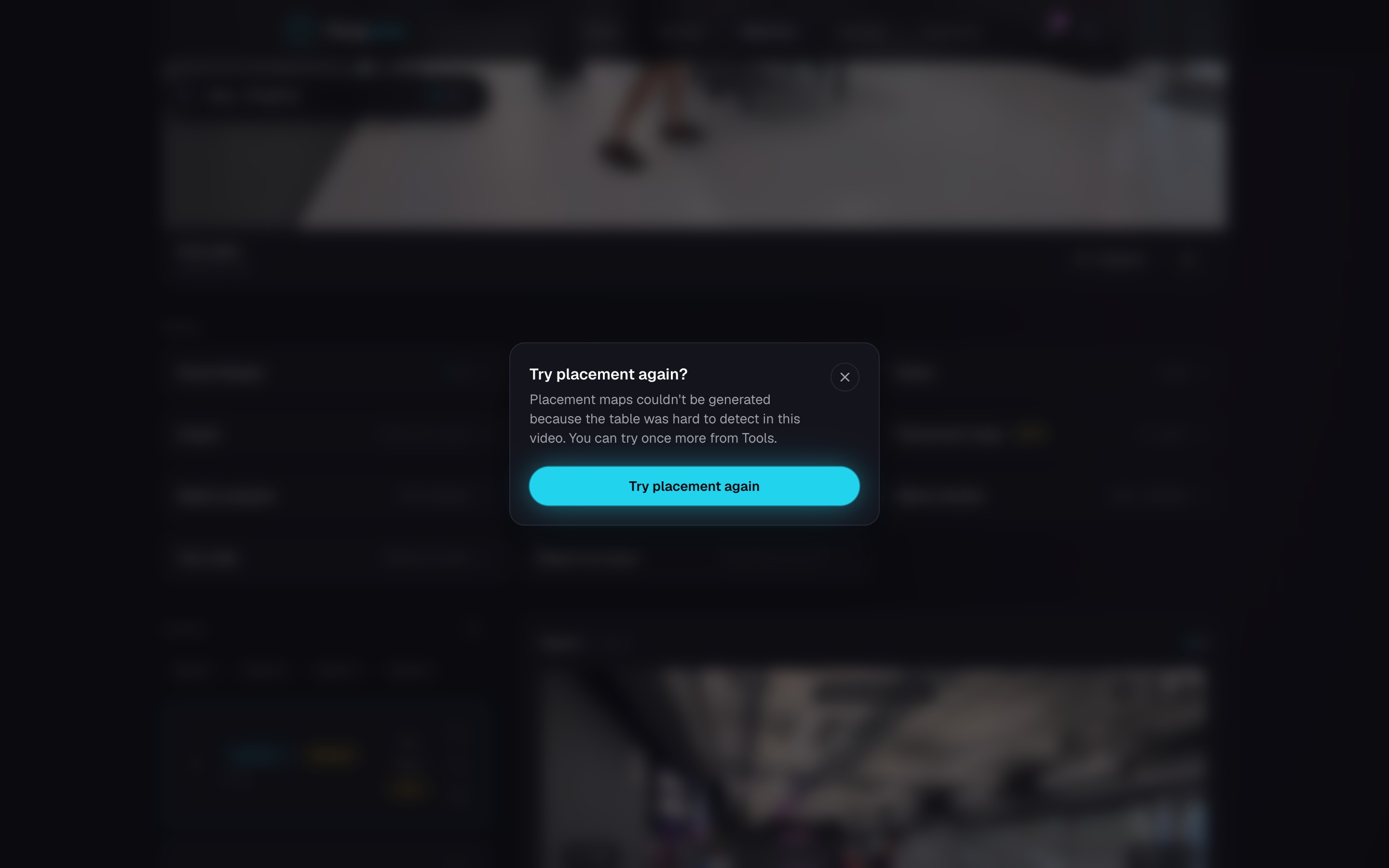
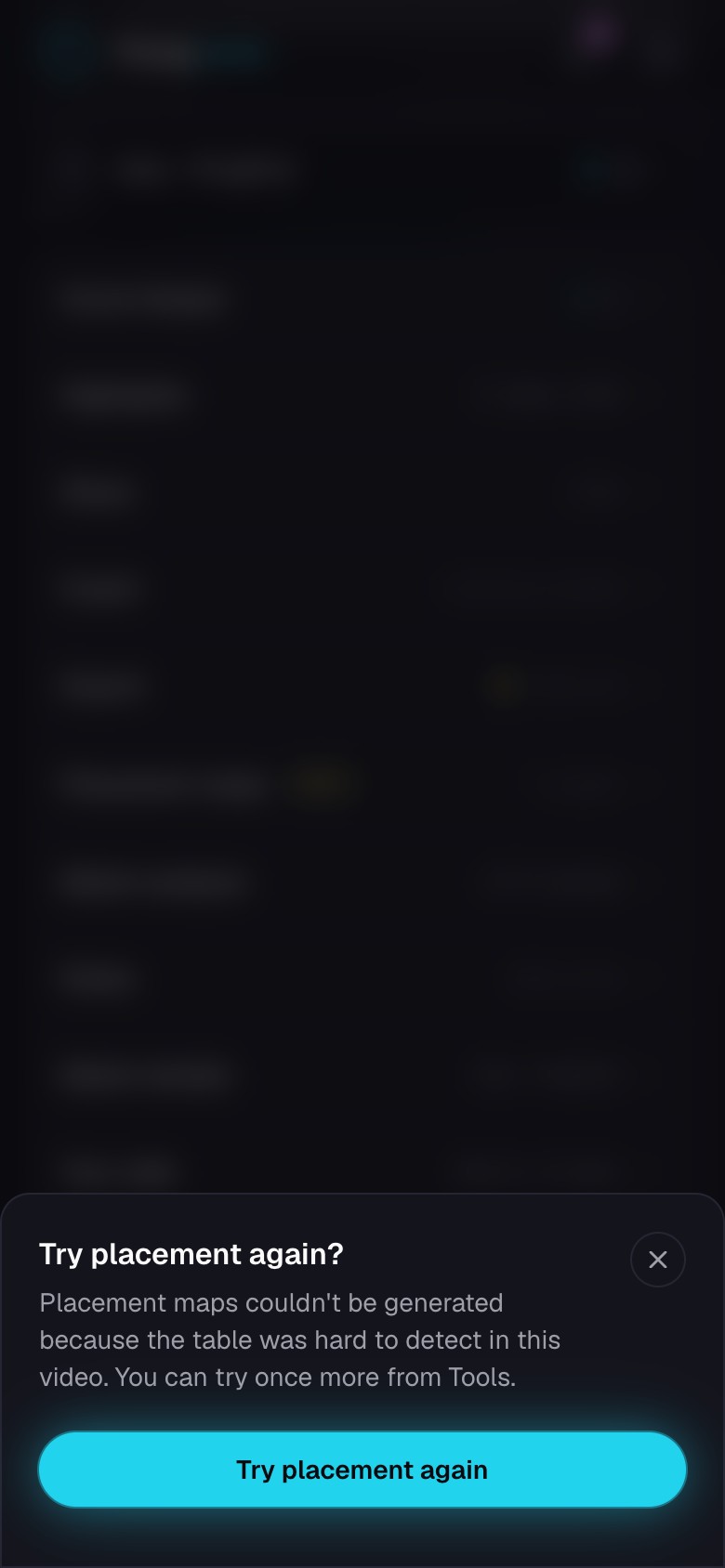
Detailed analysis runs after a match is broken into points, whether PongLens found the rallies or you marked them. If a match has no maps yet, score it, then choose Generate detailed analysis on the last card.
While the maps are being prepared, the card says so. Try again starts another attempt after a failed one. Not available for this video means the camera view cannot be used for maps.
Good to know Mark a result that looks wrong so it stops counting in the map.
Keep going
Try it on your next match.
Every account starts with 100 free processing minutes and 25 GB of storage.
Upload your first match