Learn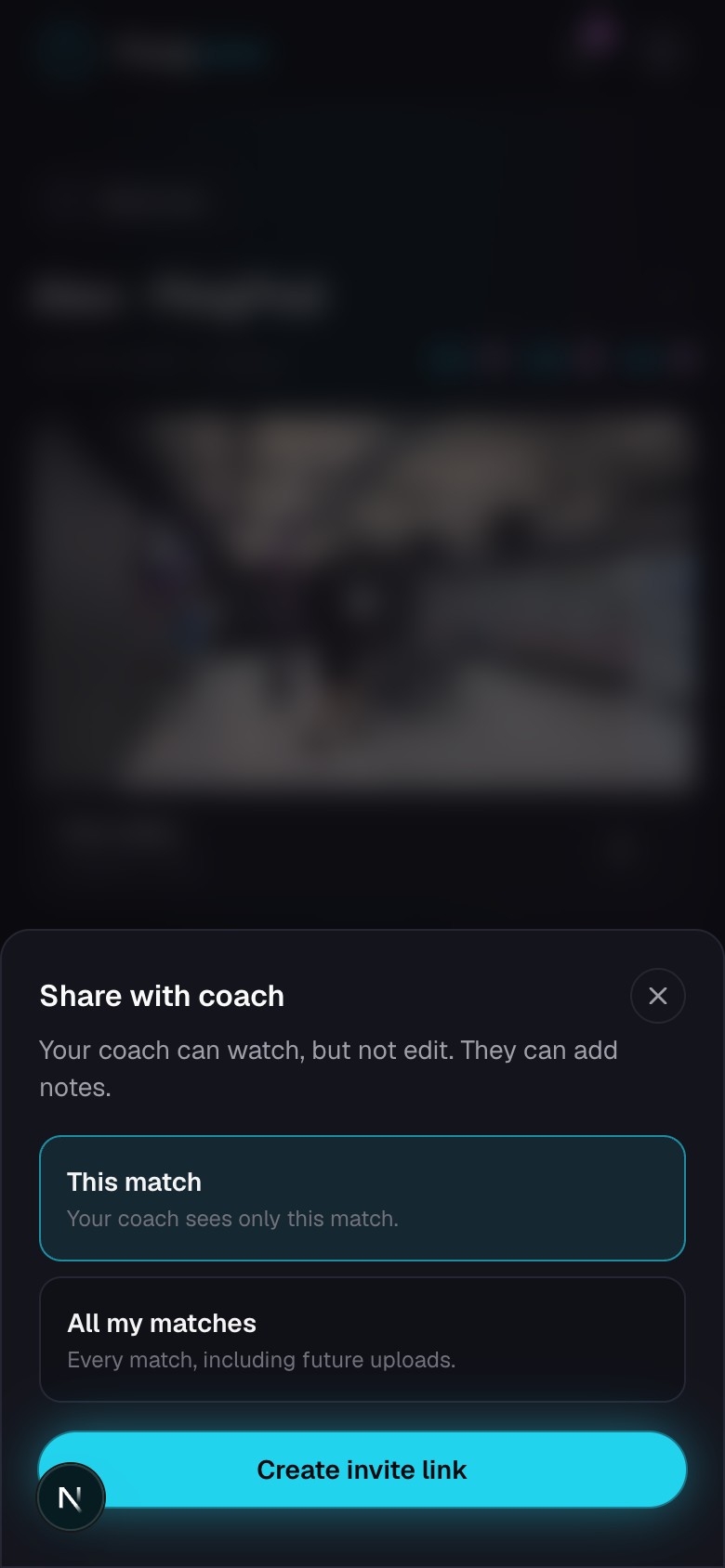
Invite a coach
Connect a coach and decide which matches that coach can open.
Quick steps
- 1Open Coaching, then Your coaches, and choose Add a coach to create an invite link.
- 2Choose whether this coach can see all matches or only matches you share.
- 3Send the link. The connection is added when the coach signs in and accepts it.
- 4A coach you have only written down while filing a lesson is on that list too. Open them and choose Send an invite.
- 5Open a coach later to change what they can see, end their access, or remove them from your list.
Choose access for each coach
- All matches includes current matches and matches you add later.
- Only matches I share starts with no match access. Share or remove individual matches from the coach's row.
- Each coach has a separate access setting, so changing one coach does not affect another.
Receive coaching in context
Written notes, voice notes, and drawings from a coach stay on the match and point they describe. They also appear in Coaching and Journal.
Lesson entries a coach shares with you arrive in Coaching and Journal. The coach can update or stop sharing the entry later.
Good to know A coach can review shared scores, clips, analysis, and maps but cannot change your match.
Keep going
Try it on your next match.
Every account starts with 100 free processing minutes and 25 GB of storage.
Upload your first match