Learn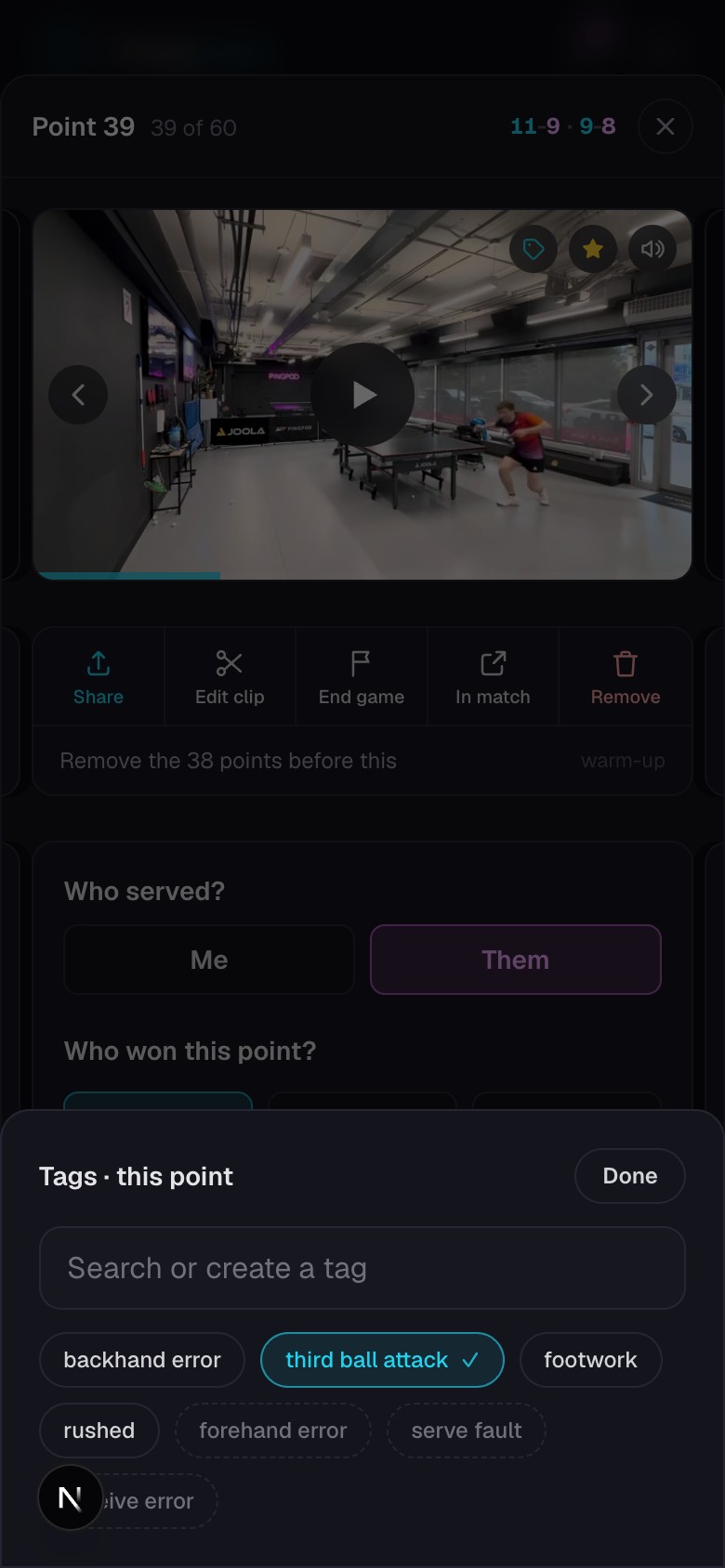
Organize points with tags
Create your own labels, find related points, and build collections.
Quick steps
- 1Open a point and select the tag icon on the video.
- 2Choose a recent tag, choose a suggested starter, or type a new label.
- 3To make a new label, choose Create followed by the label name.
- 4Select an active tag again to remove it from the point.
- 5Choose Done when the point has the tags you want.
Use labels that help you make a decision
A useful tag describes something you will want to find again, such as forehand error, short receive, or backhand down the line. Keep labels short and use the same wording each time.
Recent tags appear first, so repeating a label on another point takes two selections: open the picker, then choose the tag.
What tags create
- Tagged points are marked in the match timeline and can be found with the point filters.
- The match Export sheet can turn one tag from that match into a single video.
- The match Share sheet can create a public link for one tag. The link updates when you add or remove that tag in the same match.
- The Journal combines the same tag across points and journal entries. From there, you can export tagged points from all matches as one video.
Good to know The dashed starter tags are suggestions, not saved labels. Choosing one creates it and applies it to the current point.
Keep going
Try it on your next match.
Every account starts with 100 free processing minutes and 25 GB of storage.
Upload your first match